iTEAM Login Right Portal and Sign In Safely
iTEAM login can refer to more than one organization’s employee, school, customer, or internal-service portal. There is no single universal iTEAM sign-in page. The safest way to log in is to start from the organization that gave you the account, then use its official website, invitation email, or support channel to reach the correct portal.
This matters because a generic portal name can appear on unrelated websites. Before entering a password, confirm that the page belongs to your employer, school, service provider, or other organization.
What does iTEAM login usually mean?
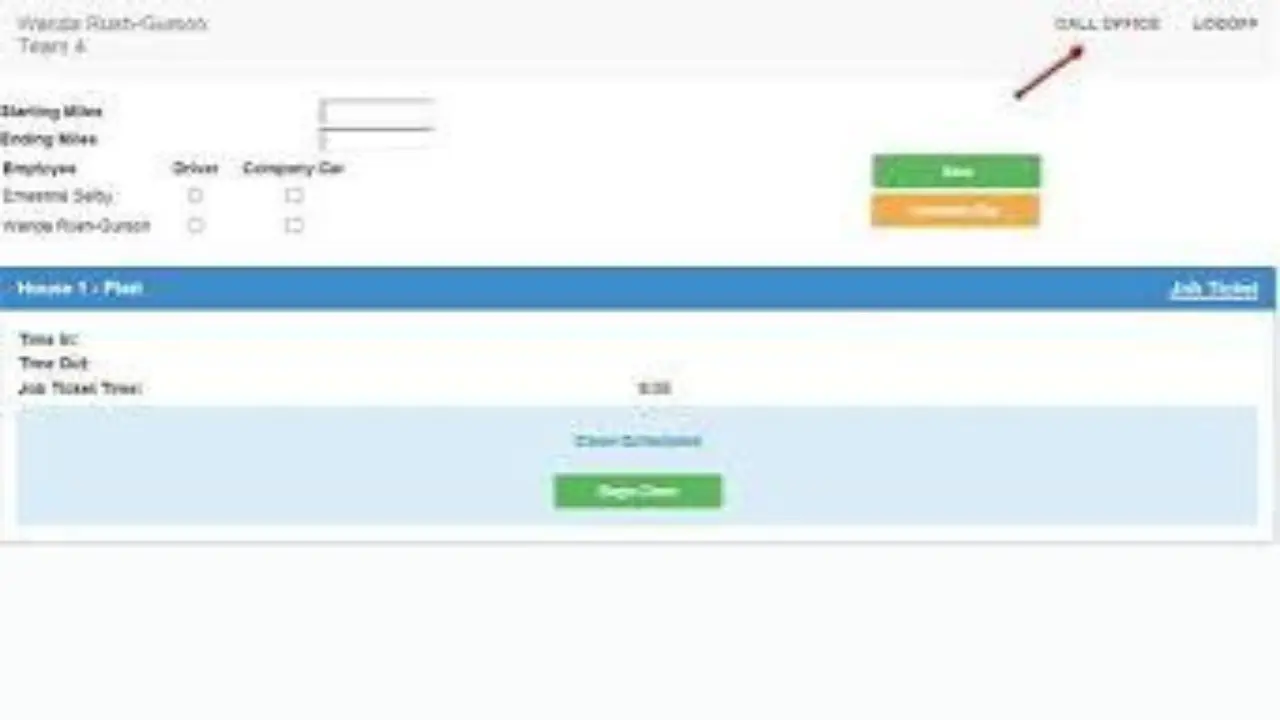
An iTEAM login is usually a sign-in area for a system branded “iTEAM,” “iTeam,” or “ITEAM.” The name may refer to a private platform rather than a public consumer service. Depending on the organization, it may provide access to schedules, documents, training, support requests, internal applications, account details, or team communications.
The exact features, username format, and recovery process depend on the organization that runs the portal. A login page alone does not confirm which iTEAM system you need.
How to find the correct login page
Use an official path to the portal instead of relying on an unverified result or a guessed web address. These steps reduce the chance of landing on a lookalike site or the wrong organization’s system.
- Check the message that introduced the account. Account-setup emails, onboarding documents, course materials, and internal notices often contain the approved link and your username instructions.
- Visit the organization’s main website. Look for links such as “Staff Login,” “Employee Portal,” “Client Login,” “Student Portal,” or “Sign In.” A legitimate portal is often linked from the organization’s own domain.
- Use a trusted internal location. For workplace systems, your intranet, service desk, manager, or IT department can confirm the right address.
- Check the web address carefully. Confirm that the organization name is spelled correctly and that the address begins with https://. HTTPS is useful, but it is not proof that a site is genuine.
- Ask support when uncertain. Contact the organization through a phone number or email address already known to be legitimate. Do not use contact details shown only on a suspicious login page.
Steps to sign in
Once you have confirmed the correct page, the sign-in process is usually straightforward. Use the credentials issued by the organization rather than trying personal email addresses or old passwords at random.
- Open the verified portal link in a current web browser.
- Enter the required username, email address, employee ID, student ID, or other account identifier.
- Enter your password carefully. Check that Caps Lock is off if passwords are case-sensitive.
- Complete multi-factor authentication if the portal requests it. This may involve an authenticator app, security key, text message, or approval notification.
- After signing in, verify that the account dashboard and organization name are what you expected.
- Sign out when using a shared, public, or borrowed device.
Some organizations use single sign-on (SSO). In that setup, selecting the portal’s sign-in button may redirect you to a familiar Microsoft, Google, Okta, or organization-branded identity page. This can be normal, provided the redirect begins from the verified portal and the address is appropriate for your organization.
Chaturbate Ebony Community, Features, and Growth Trends
Common iTEAM login problems and what to do
Most access problems come from an incorrect link, outdated credentials, browser data, or an account that has not yet been activated. Try the simple checks below before requesting a reset.
“Invalid username or password”
Re-enter your details manually rather than relying on browser autofill. Make sure you are using the identifier the organization assigned; some systems require a work email, while others use an employee or membership number. If you recently changed your password, an old saved password may still be filling the field.
Sniffies Meaning Context, Usage, And Definition
Use the portal’s official “Forgot password” or “Reset password” option only after confirming that you are on the correct site. Follow the reset link sent to your registered email or approved recovery method.
Your account is locked or you cannot receive a verification code
Repeated unsuccessful attempts may trigger a temporary lock. Stop guessing passwords, as additional attempts can extend the issue. Use the account recovery process or contact the organization’s support team.
If a one-time code doesn’t arrive, check that your registered phone number or email is current. Look in spam or junk folders for email codes, but never share a verification code with another person. A legitimate support representative should not need your password or a one-time authentication code.
The page will not load or keeps returning to the sign-in screen
First, confirm that the portal address is correct. Then try a private/incognito browser window or clear the site’s cookies and cache. Browser extensions, blocked cookies, an incorrect device clock, or a network restriction can interfere with sign-in sessions.
If the portal works on another network or device, report that detail to support. It can help them distinguish an account issue from a local browser or network problem.
You are signed in but cannot see the section you need
Access to internal tools is often based on a role, department, course enrollment, or account status. Signing in successfully does not always grant access to every page. Ask the relevant administrator or manager to confirm that the correct permissions have been assigned.
Keep your account secure
Login portals can contain personal, workplace, education, or service information. A few habits provide meaningful protection without making access difficult.
- Use a unique password that you do not reuse on other sites.
- Enable multi-factor authentication when the organization offers or requires it.
- Use a password manager to create and store strong passwords and to help recognize the correct domain.
- Do not enter credentials after following an unexpected email, text, or chat link. Open the verified portal yourself instead.
- Do not approve an authentication notification that you did not initiate.
- Avoid selecting “remember me” on public or shared computers.
- Sign out fully after using a shared device, then close the browser window.
Be especially cautious of urgent messages claiming that an account will be closed unless you sign in immediately. Phishing attempts often use urgency to push people into entering credentials on imitation pages. Verify the request through an established support channel before taking action.
What information should you have before contacting support?
Support can resolve an iTEAM login issue faster when you provide enough detail without disclosing secrets. Share the organization name, the portal address you were trying to use, the type of device and browser, and the exact error message or a screenshot with sensitive information hidden.
Do not send your password, recovery answers, multi-factor code, or full personal identification details through ordinary email or chat. If identity verification is needed, use the organization’s approved process.
How to tell a legitimate portal from a suspicious one
A professional-looking sign-in page is not automatically trustworthy. Check the context around the page, not just its design.
| Safer signs | Warning signs |
|---|---|
| You reached it from the organization’s official website or a known internal link. | You received an unexpected link through email, text, social media, or a pop-up. |
| The domain clearly matches the organization or its known identity provider. | The address contains odd spellings, extra words, or an unrelated domain name. |
| The portal requests only normal sign-in details and approved authentication steps. | The page asks for a password, verification code, payment details, or identity documents in an unusual way. |
| Support can confirm the portal address through established contact details. | The page provides only unfamiliar contact information or pressures you to act immediately. |
Frequently Asked Questions
Is there one official iTEAM login website?
No single website can be assumed from the name alone. Different organizations may use iTEAM branding for separate systems. Use the link supplied or confirmed by your own organization.
What should I do if I forgot my iTEAM password?
Use the password-reset option on the verified portal. If you cannot access the registered recovery email or phone number, contact the organization’s approved support team for help.
Why does my browser say the site is not secure?
Do not enter your credentials until the warning is understood. The link may be outdated, misconfigured, or unsafe. Return to the organization’s official website or contact support to verify the correct address.
Can I use the same password as my email account?
It is safer not to reuse passwords. If one account is exposed, reused credentials can put other accounts at risk. A password manager can help you maintain a different strong password for each account.
Why am I being asked for a code after entering my password?
This is commonly multi-factor authentication, an extra check designed to protect the account. Only enter or approve the code when you started the sign-in process on a verified site.
Final Thought
The key to a successful iTEAM login is identifying the organization behind the portal before entering your credentials. Start from an official link, use the account details issued to you, and rely on the portal’s own recovery process or verified support team if access fails. That approach helps solve routine sign-in issues while protecting your account from fake login pages.